 Free UK Delivery on orders over £75
How to add FSC® certification to your greeting cards
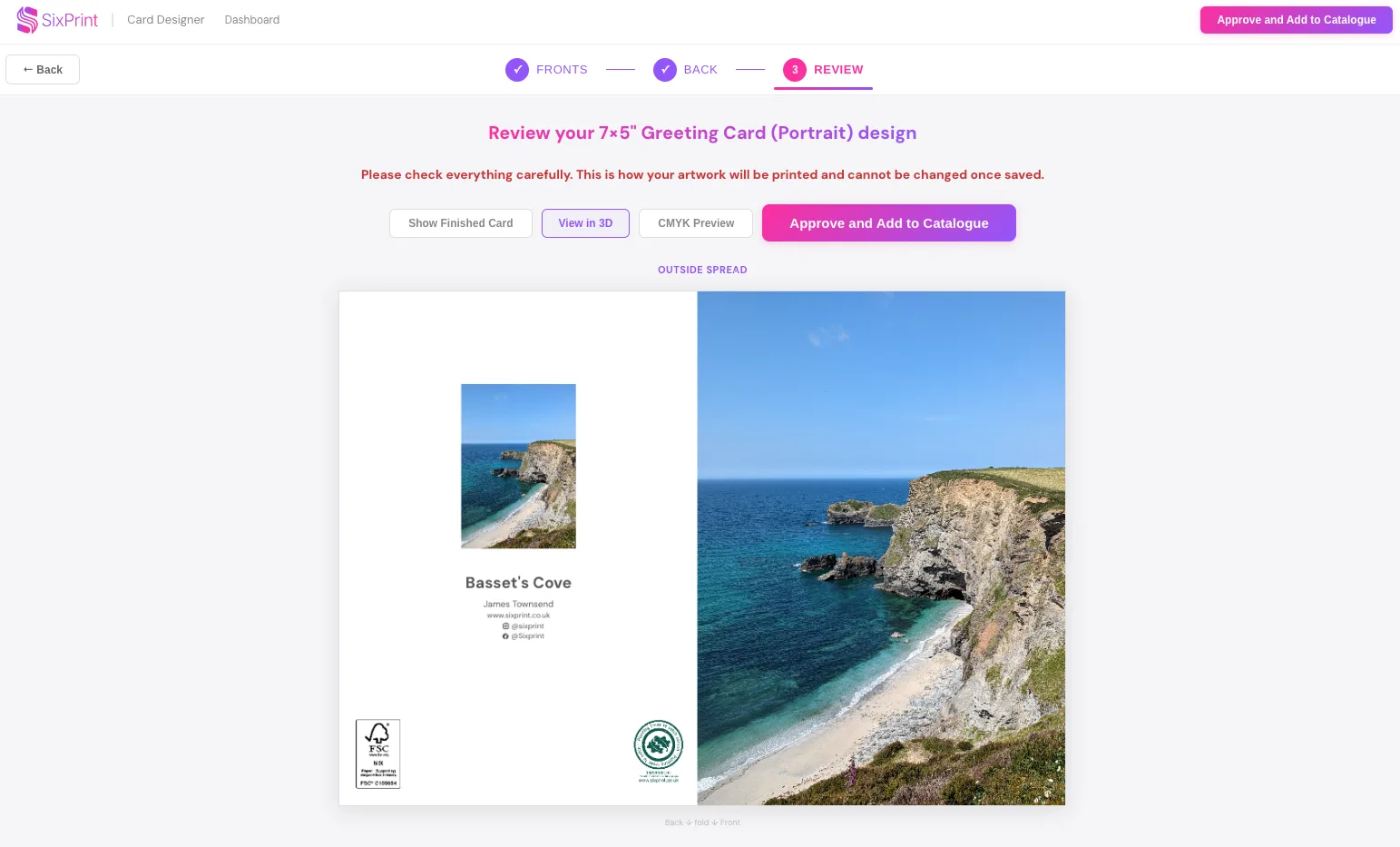
Sustainability matters to your customers, and it matters to us. Our greeting card stock is FSC®-certified and carbon-balanced through the Woodland Carbon scheme, and now you can show it: add the official FSC® logo to the back of your card right inside the designer. The best part: the designer keeps your labelling correct for you, so the logo on your card always matches the paper it's printed on.
Adding the FSC® logo to your design
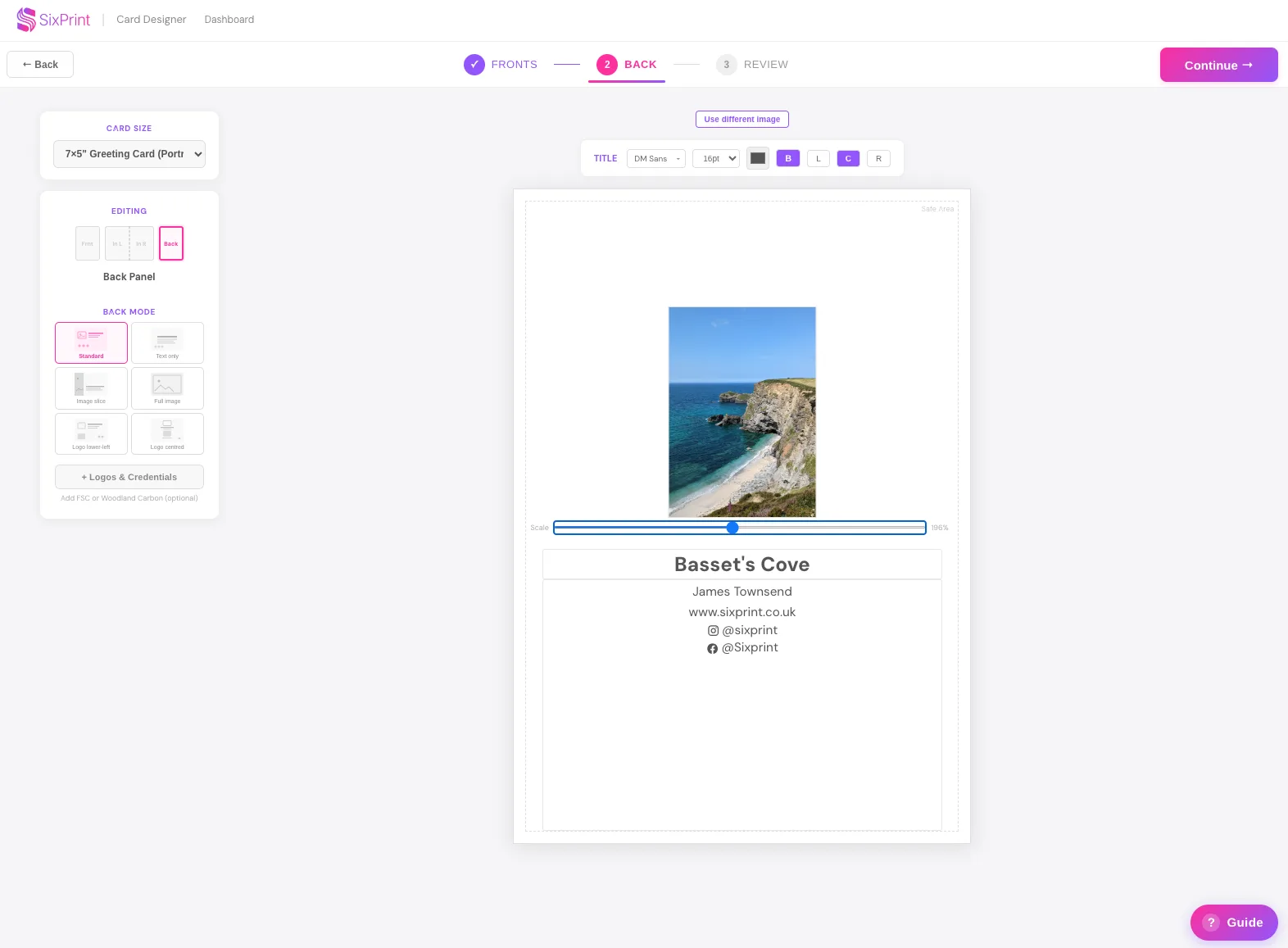
Open your card in the designer and head to the back panel, this is where credentials live, just like a professionally printed greeting card. Click Logos & Credentials to open the panel.
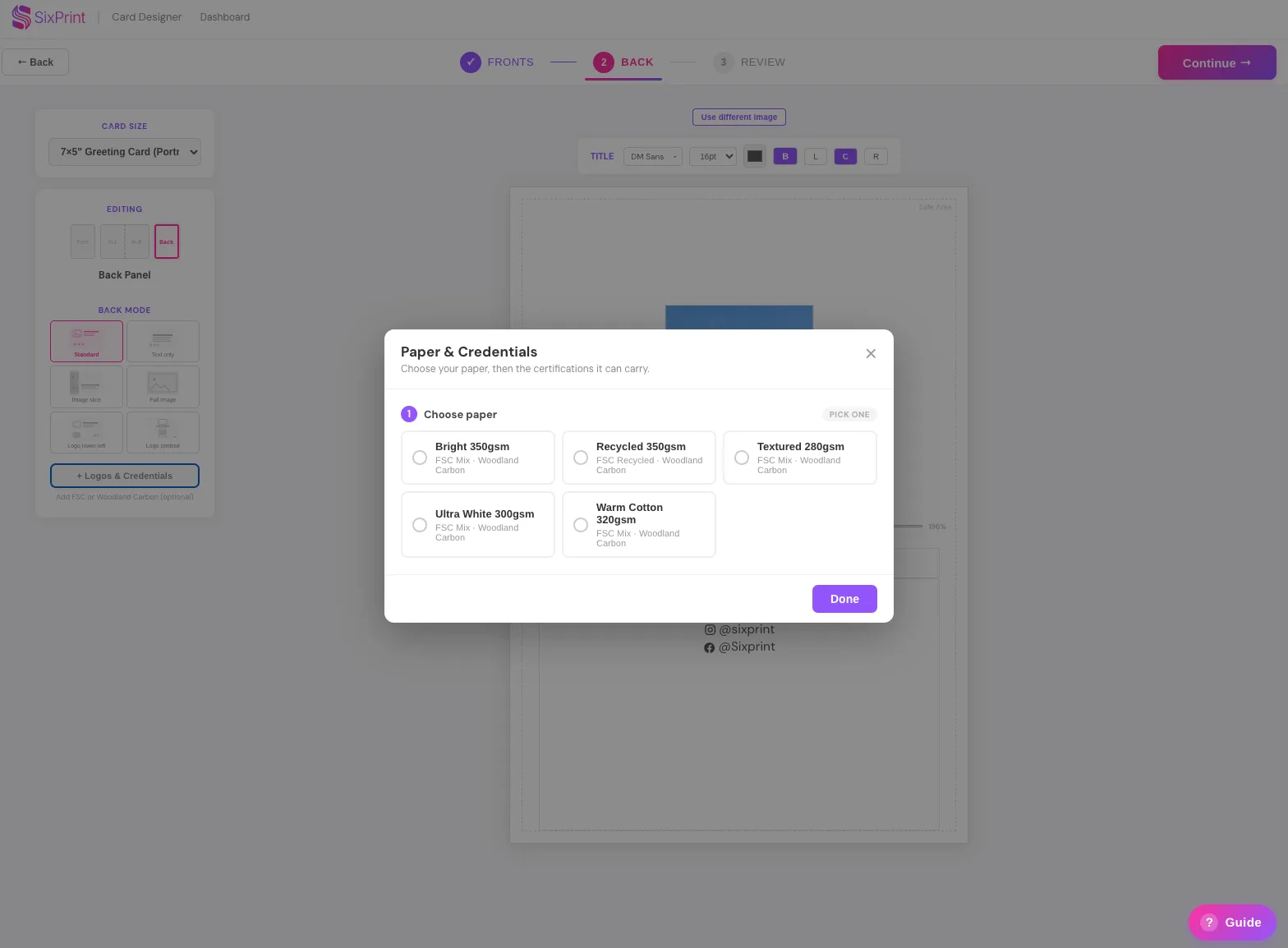
The paper you choose sets the correct logo
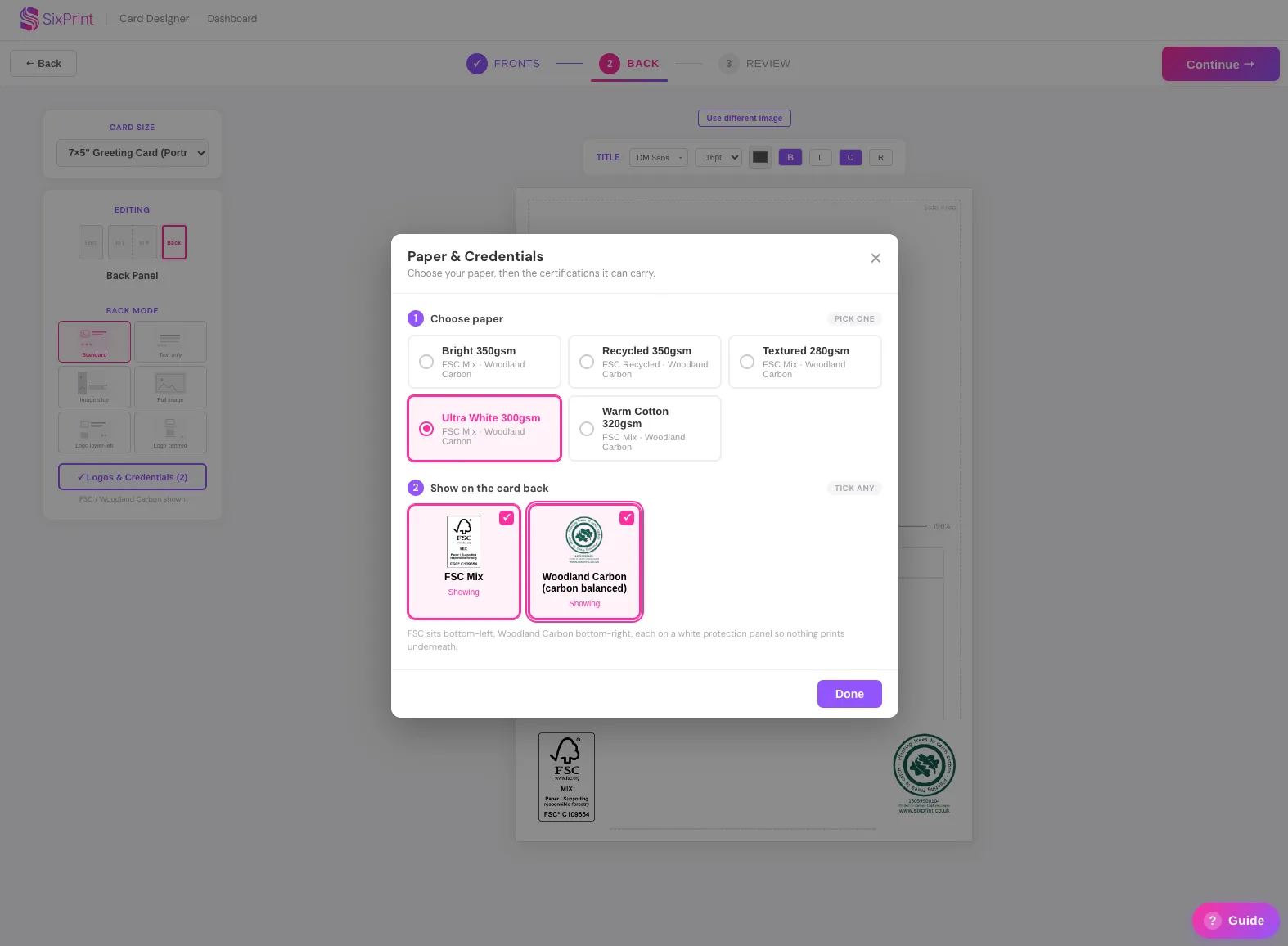
FSC® certification comes in different types, and the logo has to match the exact paper you print on. So rather than making you work that out, the designer does it for you: select your media (paper), and the correct FSC® logo is applied automatically.
What this means when you order
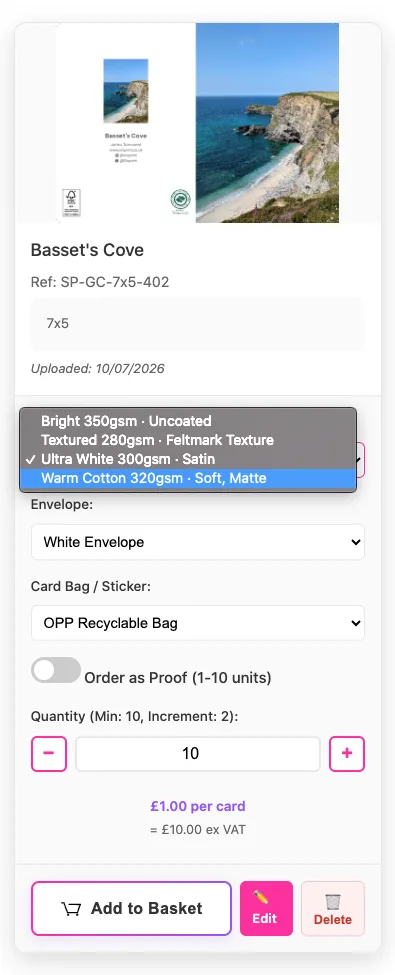
Once your card is in your catalogue, you'll only be able to choose papers that match the FSC® logo on the design. This is what guarantees your finished card is labelled correctly and honestly.
Does adding the FSC® logo cost extra?
No. Choosing FSC®-certified paper is about the stock you select; adding the logo in the designer is free.
Why can't I select a certain paper for my card?
The paper you're trying to choose carries a different FSC® credit type to the logo on your design. Click Edit to change the paper, or remove the logo to unlock all papers.